Usage#
Settings#
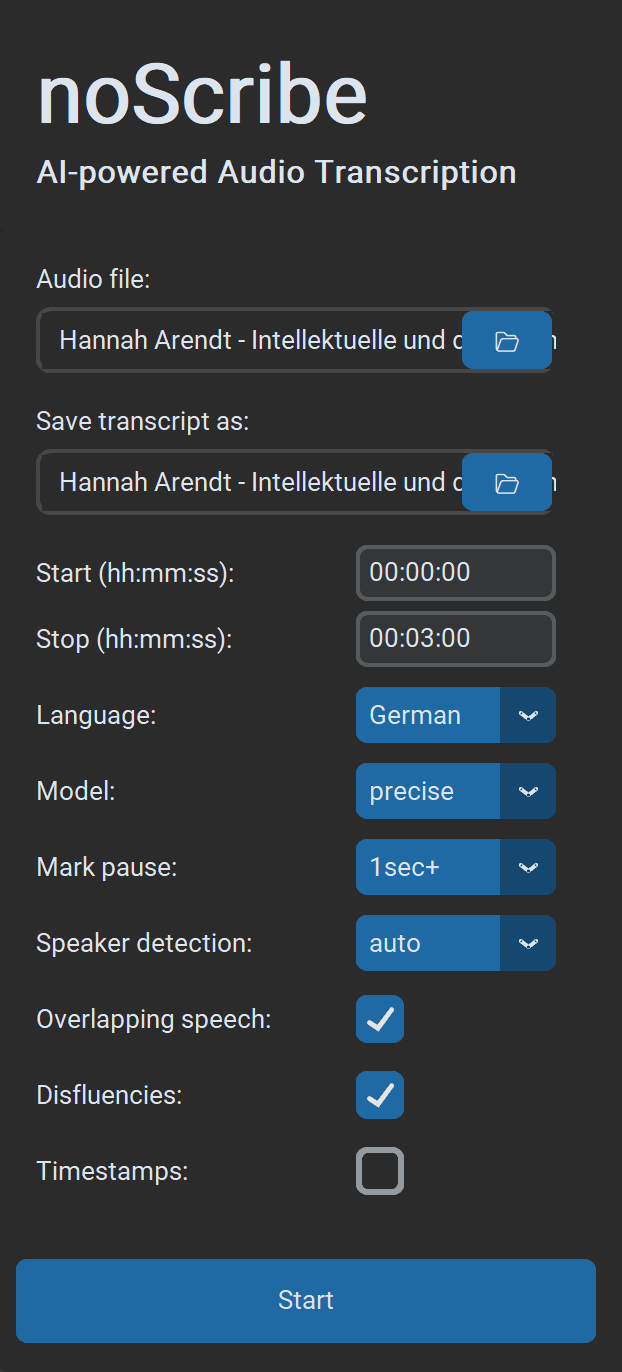
- Choose audio file: Almost all audio and video formats are supported. You can also select multiple files in the dialog; they will then be processed one after another.
- Save transcript as: Default is
.html(compatible with the editor). Optionally.txtfor plain text or.vttfor subtitles and further work in EXMARaLDA. If multiple input files are processed at once, only the output folder can be selected. Output file names are then generated automatically. - Start/Stop: Time range in the format
hh:mm:ss, ideal for testing shorter excerpts. - Language: Select a language or “Auto” for detection, or “Multilingual” for multiple languages in the same recording (experimental).
- Quality: “Precise” delivers the best results and is the recommended choice for almost all use cases. “Fast” is a bit quicker and mainly intended for older computers. It requires more post-correction.
- Mark pause: If selected, pauses are marked as dots in brackets, one dot per second of pause. Optional from 1/2/3 seconds.
- Speaker detection: If known, select the number of speakers to make detection more robust. Otherwise choose “Auto” for automatic detection or “None” to skip this step entirely.
- Overlapping speech: Simultaneous speech is marked with
// Speaker: text of the interjection //(experimental). - Disfluencies: If selected, filler words and incomplete words/sentences are transcribed when possible; otherwise they are not. Note: This is more a “recommendation” to the AI model, not a hard on/off switch.
- Timestamps: Inserts a timestamp in the format
[hh:mm:ss]every 60 seconds or on speaker changes (e.g., useful for MAXQDA). - Start begins the transcription process. If a process is already running, you can still submit new ones. These are then queued in the queue and processed when it is their turn.
Queue#
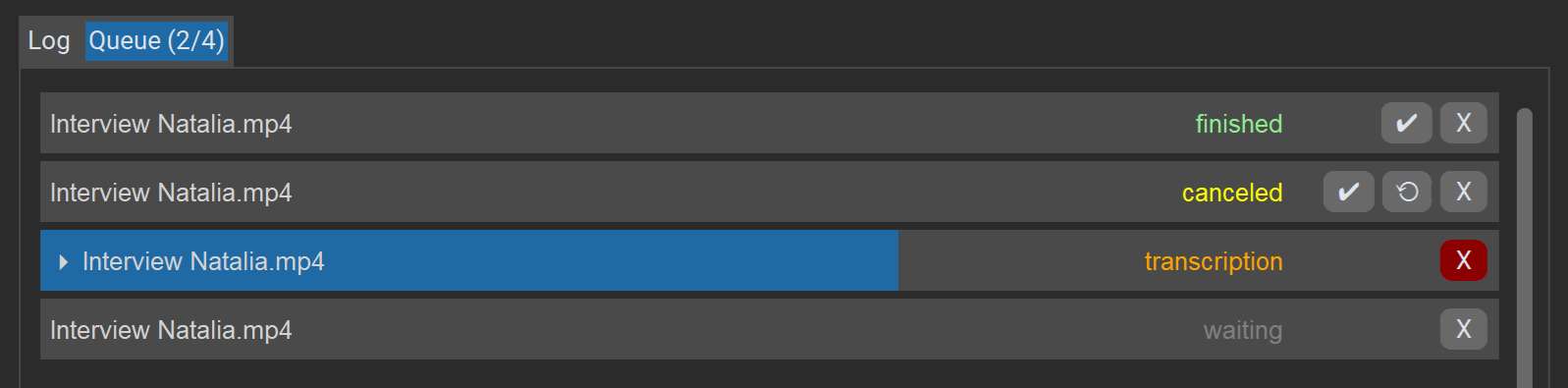
The “Queue” tab shows a list of all jobs in the current session, their current status, and progress. Jobs are processed one after another.
Actions for jobs:
Xdeletes or cancels the job.✔opens the result in the editor (even if there were errors, as long as an incomplete transcript exists).⟲restarts a job (after errors/cancellation).
The “Cancel” button at the bottom right stops the entire queue.
The noScribe Editor#
The editor is an important part of noScribe. It is used to review and correct transcripts. Even with the best AI models, this is still essential.
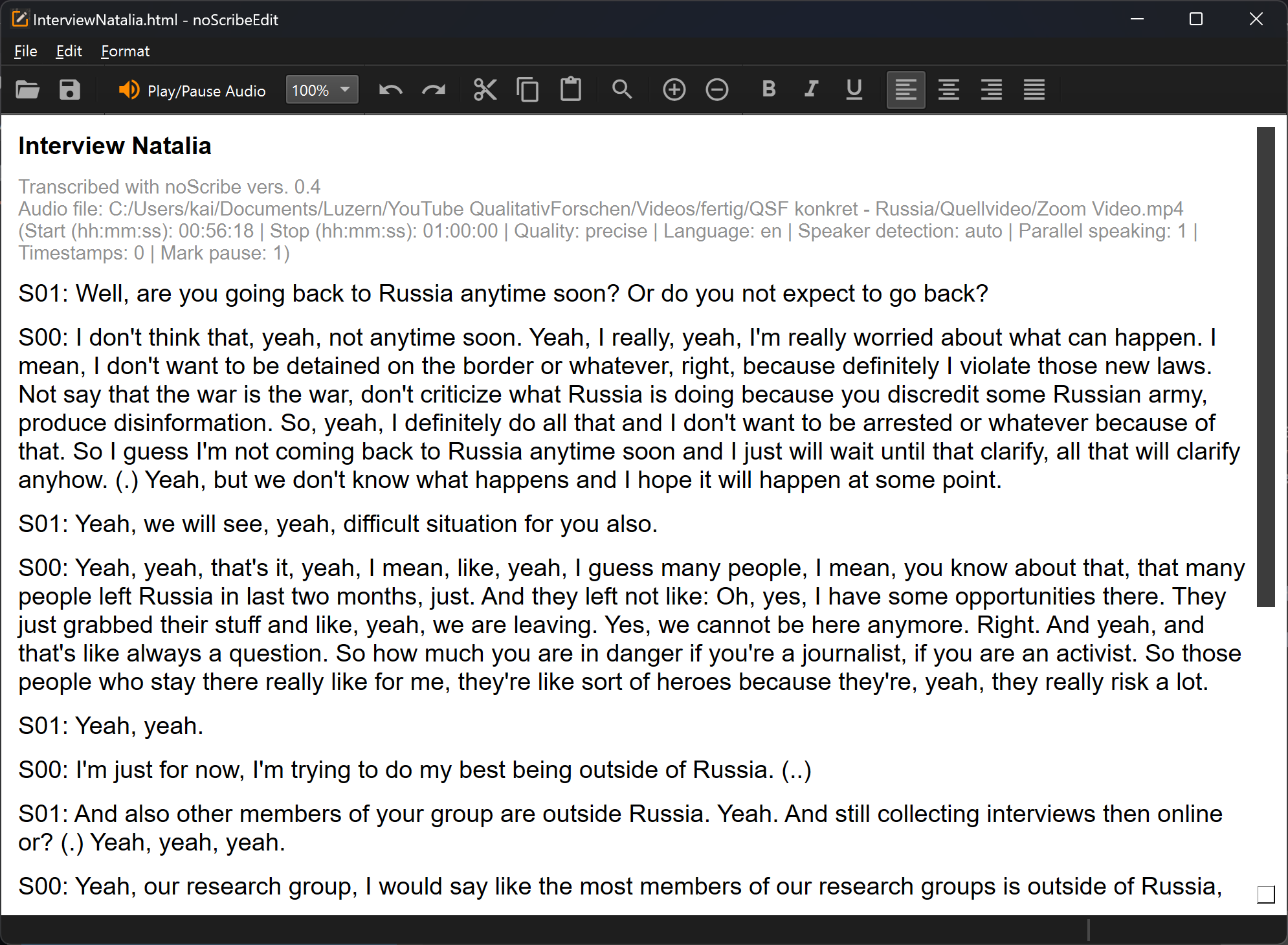
The key function: Ctrl+Space (Mac: ^Space) or the orange button starts audio playback at the current cursor position. The text selection follows the audio. To edit, simply click anywhere in the text or navigate with the arrow keys.
Other toolbar functions:
- The combo box (“100%”) lets you increase or reduce playback speed.
- The magnifier opens a find/replace dialog. This is very useful, for example, to change speaker names.
- Plus/Minus: Zoom function
- There are also typical editor functions to open files, copy, or format text. The usual keyboard shortcuts (e.g., Ctrl+C to copy) also work. All functions are also accessible via the menus. Unfortunately the editor UI is currently not translated.
The noScribe Editor is a standalone app that can also be used independently of the main program.
Source code: https://github.com/kaixxx/noScribeEditor
Typical Issues with AI-Assisted Transcription#
AI-assisted speech recognition has made huge advances in recent years. Still, there are typical problems, errors, and limitations to watch out for:
- Non-verbal expressions like laughter, sighs, etc. are not captured and must be added manually.
- Simultaneous speech and very dense interactive passages, for example in group discussions, are challenging for the AI model. Content can be lost or assigned to the wrong people.
- Sometimes more speakers are detected than were actually present. Here it helps to set the correct number in “Speaker detection” beforehand.
- Unusual names of people or organizations, slang expressions, or words from other languages are often spelled incorrectly, sometimes almost phonetically. Find & replace in the noScribe Editor can help.
- Like other AI language models, the Whisper model used here can sometimes “hallucinate” and add words or phrases that sound plausible but were not actually said - see this Cornell University study on the topic.
- Rarely, endlessly repeating text loops can occur, similar to a defective record. In this case, transcribe shorter sections with slight overlap and stitch them together manually.
- A mix of multiple languages in the same recording can cause the AI model to translate instead of transcribing verbatim.
- With long audio files, punctuation/capitalization can be lost. In that case, splitting the transcript may help, or you can use the transcription model “faster-whisper-large-v2”, which is less prone to this problem. However, it must first be installed.
- The quality of the result depends heavily on the language. Western languages are generally very well supported, including smaller ones like Dutch. Support is also good for Korean, Chinese (Mandarin), or Indonesian. By contrast, other large languages such as Persian, Punjabi, or Tamil are transcribed much less accurately. This is a clear case of AI bias, reflecting the economic interests of OpenAI, which trained the Whisper model. Here is an overview of typical error rates in different languages. See also this paper for a comparison of different transcription models and their error rates.